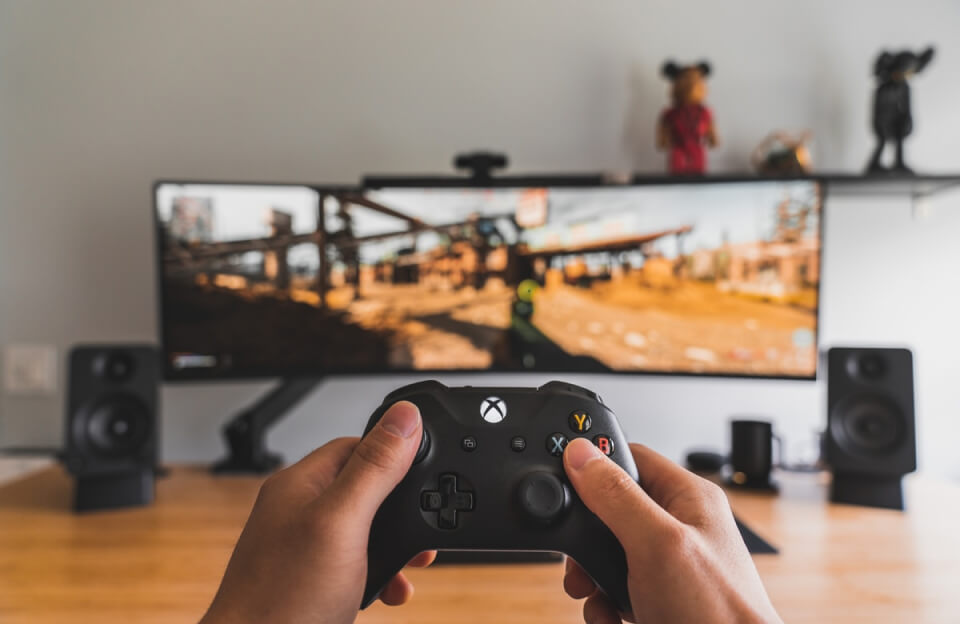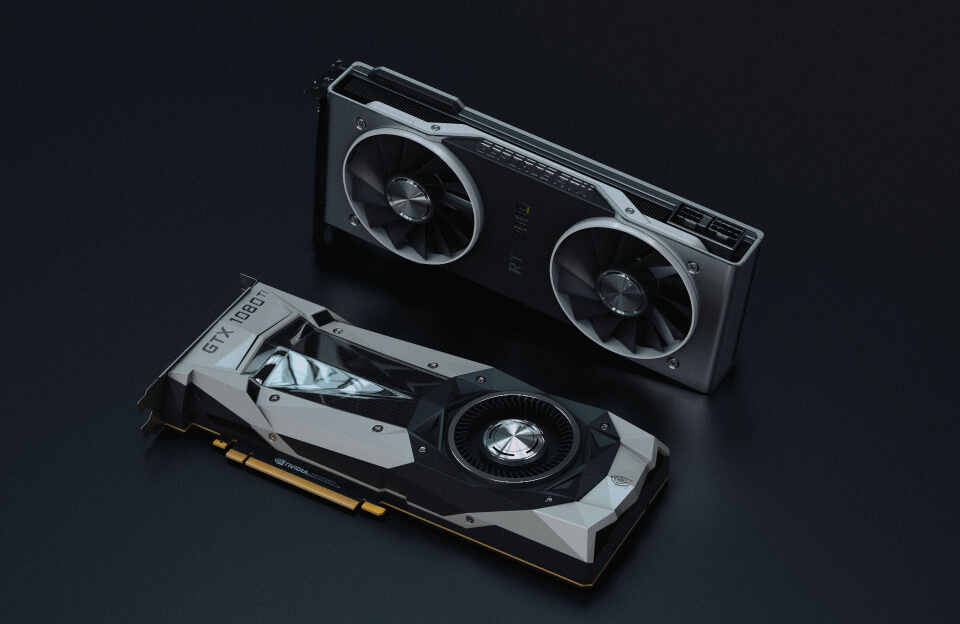

Quick answer: To reduce input lag in PC gaming, use a high refresh rate monitor in its game mode, enable low-latency features such as NVIDIA Reflex or AMD Anti-Lag where available, avoid traditional V-Sync or use adaptive sync with a frame cap, run games in exclusive fullscreen where it helps, use wired peripherals or low-latency wireless, and keep frame rates stable by lowering demanding settings.
Key takeaways
- Higher stable frame rates reduce input lag.
- Monitor game mode turns off extra processing.
- Low-latency modes in drivers and games help.
- Traditional V-Sync can add delay.
- Wired or low-latency wireless peripherals are best.
Input lag is the delay between your action – a mouse click, a key press, a flick of the thumbstick – and the result appearing on screen. In competitive games, even small delays can make aiming feel sluggish and reactions feel late. Input lag comes from many links in a chain, from your mouse to your display. The good news is that you can shorten several of those links with free settings changes. Here is a practical checklist.
Understanding the Latency Chain
Total system latency includes:
- Peripheral latency: how quickly your mouse or keyboard reports input.
- Game and CPU processing: how fast the game processes input and prepares the frame.
- Render queue and GPU: frames waiting to be drawn and the time to render them.
- Display latency: how quickly the monitor processes and shows the image, plus pixel response time.
Improving any of these reduces the overall delay.
Display Settings
Use the Highest Refresh Rate
Make sure Windows is set to your monitor’s maximum refresh rate under Advanced display settings. A 144 Hz or higher monitor running at 60 Hz by mistake adds latency and looks less smooth. Our guide to monitor refresh rates explains the difference.
Enable Game Mode on TVs
If you play on a TV, enable its game mode, which turns off heavy picture processing that adds delay.
Avoid Unnecessary Processing
Disable monitor features that add processing, such as some motion smoothing or dynamic contrast modes, if they increase lag. Check your monitor’s manual.
Sync and Frame Settings
Reconsider V-Sync
Traditional V-Sync adds latency because frames wait for the next refresh. Competitive players often turn it off or use variable refresh rate with a frame cap instead. Our explainer on V-Sync and screen tearing covers the trade-offs.
Use a Frame Rate Cap Wisely
When the GPU is fully loaded, frames can queue up and increase latency. Capping the frame rate slightly below what your GPU can sustain keeps the GPU from maxing out and can reduce lag, especially with VRR.
Enable Low-Latency Modes
NVIDIA and AMD offer driver-level and in-game low-latency features that reduce the render queue. Where a game supports an in-game latency reduction feature, enable it.
Game Settings
- Play in exclusive full-screen or the optimised full-screen mode recommended by the game. Some windowed modes add latency.
- Lower settings that heavily load the GPU if your GPU is constantly at full load, since a maxed-out GPU tends to increase queueing.
- Disable motion blur and similar effects if they make tracking harder.
Peripherals
Wired or Low-Latency Wireless
Modern gaming-grade wireless mice can be very responsive, but cheap wireless devices or Bluetooth connections can add delay. Use a wired connection or the dedicated low-latency receiver.
Higher Polling Rate
A higher polling rate means the mouse reports position more often. Many gaming mice support higher rates in their software.
Keep Receivers Close
Place wireless receivers near the mouse using a USB extension if needed, away from interference sources.
Windows and System
- Keep GPU drivers updated.
- Close background apps that use CPU heavily during games.
- Disable overlays you do not use, as some can add overhead.
- Use the Windows power plan suited to performance on desktops.
- Enable Hardware-accelerated GPU scheduling if it helps in your tests; results vary between systems.
Network Lag Is Different
In online games, the delay between your action and the server’s response is network latency, or ping. It is separate from input lag on your PC. A wired connection usually helps. A wired Ethernet connection to your router is usually the most effective way to keep it stable.
How to Measure Improvement
Some GPU drivers and games include latency monitoring tools that show system latency in milliseconds. Use them to compare settings. If you do not have such tools, rely on consistent testing: practise in the same training map and notice how aiming feels.
Do Not Chase Numbers Blindly
Very small changes may not be noticeable. Prioritise the big wins: correct refresh rate, avoiding a GPU-maxed state, low-latency modes and a good mouse. After that, consistency and practice matter more than tiny tweaks.
A Quick Checklist Before Every Competitive Session
- Confirm the refresh rate is at maximum.
- Close heavy background apps.
- Check that your mouse is on its intended polling rate and DPI.
- Verify in-game low-latency options are enabled.
- Plug in Ethernet if possible.
These five steps take less than a minute and remove the most common causes of avoidable lag.
Hardware That Helps When Settings Are Not Enough
If your CPU is consistently at full load in competitive games, frame times become uneven and latency rises. In that case, a faster CPU or faster memory can help more than any setting. If your monitor is an older 60 Hz model, moving to a high refresh rate display is often the most noticeable upgrade for responsiveness. Identify the weakest link before spending money.
Mouse Settings Worth Checking
Open your mouse software and confirm the polling rate and DPI are set as you intend, since some mice reset after firmware updates. In Windows, many competitive players also disable pointer acceleration so that hand movement translates consistently into cursor movement.
Practical Guide: Going Deeper
Input lag reduction checklist
| Setting | Recommended |
|---|---|
| Monitor mode | Game mode on |
| Refresh rate | Set to monitor maximum in Windows |
| Sync | Adaptive sync with frame cap |
| Low-latency mode | Reflex or Anti-Lag if supported |
| Peripherals | Wired or low-latency wireless |
| Background apps | Close unnecessary programs |
Understanding the Input Lag Chain
Where Delay Comes From
Input lag includes the time taken by your mouse or controller, the PC to process the frame, and the monitor to display it. Each stage adds delay.
Frame Time Matters
Higher frame rates mean each frame is produced faster, reducing processing delay.
Display Settings That Help
Refresh Rate
Make sure Windows uses your monitor’s maximum refresh rate.
Adaptive Sync
G-Sync or FreeSync with a frame cap slightly below refresh rate can reduce tearing without large latency penalties.
System Tweaks
Graphics Settings
Lower demanding settings to keep GPU usage stable and avoid frame drops.
Background Processes
Close overlays and apps that use CPU or GPU resources.
Peripherals and Connections
Mouse and Keyboard
High polling rates and wired connections reduce delay.
Controllers
Wired or low-latency wireless dongles are better than standard Bluetooth for many controllers.
Step-by-Step Action Plan
- Set Windows to your monitor’s maximum refresh rate.
- Enable game mode on the display.
- Turn on Reflex or Anti-Lag in supported games.
- Enable adaptive sync and cap FPS a few frames below refresh.
- Lower settings until frame rate is stable.
Common Mistakes to Avoid
- Running uncapped V-Sync in competitive games.
- Leaving the TV or monitor in a picture mode with heavy processing.
- Using maximum graphics settings that cause frame drops.
- Using Bluetooth controllers when a wired option is available.
Quick Glossary
- Input lag: Delay between an action and seeing it on screen.
- Polling rate: How often a mouse or keyboard reports to the PC.
- Frame time: Time taken to render one frame.
- Render queue: Frames waiting to be processed by the GPU.
Final Thoughts
Reducing input lag is about optimising every step from input to display. Use a high refresh rate monitor, game mode, low-latency features and adaptive sync with a frame cap, and keep frame rates stable. Choose responsive peripherals and remove background distractions. Small improvements add up, making your games feel sharper and more responsive.
Related reading:
Frequently Asked Questions
Does a higher refresh rate reduce input lag?
Yes, it can reduce display-related delay and makes motion feel more responsive.
Is wireless mouse lag noticeable?
Modern low-latency wireless mice are close to wired for most players.
What causes input lag in PC games?
Delays from peripherals, game processing, render queues, GPU load and display processing all add up to input lag.
Does V-Sync increase input lag?
Yes, traditional V-Sync usually adds latency. VRR with a frame cap is a common alternative.
Does a higher refresh rate monitor reduce input lag?
Yes. Higher refresh rates show new frames sooner, reducing display-related delay.
Is wireless mouse input lag noticeable?
Modern gaming-grade wireless mice using dedicated receivers are typically very responsive; Bluetooth connections may add more delay.