
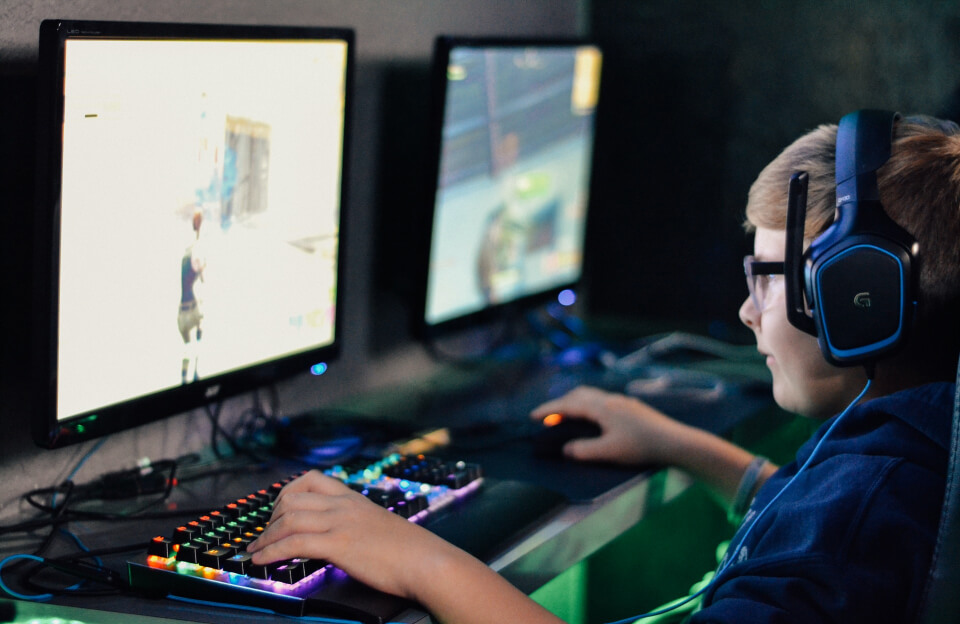
When you want to dominate the competitive arena, the first step is to optimize gaming PC for esports. A high‑performance rig is only part of the equation; fine‑tuning hardware, software, and network settings can shave milliseconds off reaction time and deliver smoother frame rates. This guide walks you through proven techniques that professional teams use, from CPU overclocking to low‑latency networking, ensuring your system runs at peak efficiency for titles like Valorant, CS:GO, and League of Legends. By the end, you’ll have a checklist you can apply immediately, backed by reputable sources such as Wikipedia and industry leaders like Intel.
Hardware Tips to Optimize Gaming PC for Esports
Esports titles demand high frame rates at low latency, so every component matters. Start with the CPU: a modern, high‑core‑count processor with strong single‑thread performance (e.g., Intel i7‑13xxx or AMD Ryzen 7 7000 series) provides the backbone for physics calculations and AI. Pair it with a fast DDR5 memory kit (at least 5600 MHz) to reduce bottlenecks. For the GPU, prioritize refresh‑rate over raw horsepower—high‑refresh monitors pair best with graphics cards that can sustain 144 Hz or more at the game’s native resolution. Finally, invest in a solid‑state drive (NVMe PCIe 4.0) for rapid load times and smoother texture streaming.
Software Settings to Optimize Gaming PC for Esports
Even the best hardware can be throttled by default Windows or driver configurations. Begin by enabling the Windows Game Mode and disabling visual effects that consume GPU cycles. Update your graphics drivers directly from the manufacturer—NVIDIA’s GeForce News page regularly lists performance‑oriented patches. In the GPU control panel, set the power management mode to “Prefer maximum performance” and disable V‑Sync to eliminate input lag.
Next, adjust key in‑game settings:
- Resolution: Keep it at native or slightly lower if frame rate stalls.
- Render Scale: Reduce to 90‑95 % for a boost without visual sacrifice.
- Anti‑Aliasing: Turn off or select the lowest option; modern esports games often render cleanly without it.
- Shadows and Ambient Occlusion: Set to “Low” or “Off” to free GPU headroom.
These tweaks directly influence the low latency and high FPS performance that esports athletes rely on.
Network and Latency Tweaks to Optimize Gaming PC for Esports
Network latency can be the silent killer of competitive success. Use a wired Ethernet connection whenever possible; a Cat‑6 or higher cable reduces packet loss compared to Wi‑Fi. Configure QoS (Quality of Service) on your router to prioritize gaming traffic, and consider opening UDP ports commonly used by esports titles (e.g., 3074 for Call of Duty, 27015 for CS:GO). For deeper insight, the Cisco Cybersecurity Report explains how packet prioritization improves real‑time applications.
Additional steps include:
- Disabling background downloads and cloud sync services while playing.
- Setting your Windows network adapter to “Full Duplex” and disabling power‑saving modes.
- Using a DNS provider optimized for speed, such as Cloudflare (1.1.1.1).
Peripheral and Display Calibration to Optimize Gaming PC for Esports
Even with a perfectly tuned core system, poorly calibrated peripherals can erode an edge. Choose a monitor with a response time under 1 ms and a refresh rate of at least 144 Hz. Calibrate the display’s brightness and contrast to reduce eye strain, and enable the monitor’s “Game” mode to disable post‑processing. For the mouse, select a model with adjustable DPI (400‑800 is standard for esports) and enable polling rates of 1000 Hz to ensure rapid input transmission. Keyboard actuation points can be shortened for faster key presses, especially in rhythm‑based shooters.
Maintenance and Future‑Proofing to Optimize Gaming PC for Esports
Consistent maintenance ensures long‑term performance stability. Clean dust from fans and radiators monthly to maintain optimal thermal headroom, as high temperatures trigger CPU throttling. Use monitoring tools like HWMonitor or MSI Afterburner to track temperatures, clock speeds, and frame times during gameplay. When planning upgrades, prioritize components that directly affect latency—such as moving from SATA SSDs to NVMe, upgrading to a higher‑tier GPU, or adding a dedicated gaming router that supports Wi‑Fi 6 for future wireless scenarios.
Conclusion
Optimizing your gaming PC for esports is a multi‑layered process that blends hardware selection, fine‑tuned software settings, low‑latency networking, and precise peripheral calibration. By following the steps outlined above, you’ll reduce input lag, maximize frame rates, and gain the split‑second advantage needed to climb the competitive ladder. Ready to put these strategies into action? Start implementing the checklist today and share your performance gains in the comments below!
Frequently Asked Questions
Q1. How does CPU overclocking improve esports performance?
Overclocking raises the processor’s clock speed, reducing frame time calculations and improving responsiveness. It is most effective on CPUs with strong single‑core performance, which many esports titles rely on. However, adequate cooling is essential to maintain stability.
Q2. Should I disable V‑Sync for competitive gaming?
Yes, disabling V‑Sync removes the extra frame buffering that adds input lag. Esports games typically run at high frame rates, so screen tearing is less noticeable on a high‑refresh monitor. Keep an eye on FPS to avoid excessive tearing.
Q3. Is a wired Ethernet connection really necessary?
Wired Ethernet provides consistent latency and eliminates the variability of Wi‑Fi interference. Using a Cat‑6 or better cable ensures low packet loss, which can be the difference between a win and a loss in fast‑paced matches. If you must use Wi‑Fi, opt for 5 GHz and a gaming‑grade router.
Q4. What monitor specs are ideal for esports titles?
Look for a 144 Hz or higher refresh rate with a 1 ms (GTG) response time. A resolution of 1920×1080 balances performance and visual clarity, while adaptive‑sync technologies can reduce tearing without adding input lag. Calibration of brightness and contrast helps maintain focus.
Q5. How often should I clean my PC to maintain performance?
Dust buildup can raise temperatures and trigger throttling, so clean the interior at least once a month. Use compressed air to clear fans, radiators, and filters, and reapply thermal paste every few years if temperatures climb. Regular maintenance keeps your overclocked settings stable.