
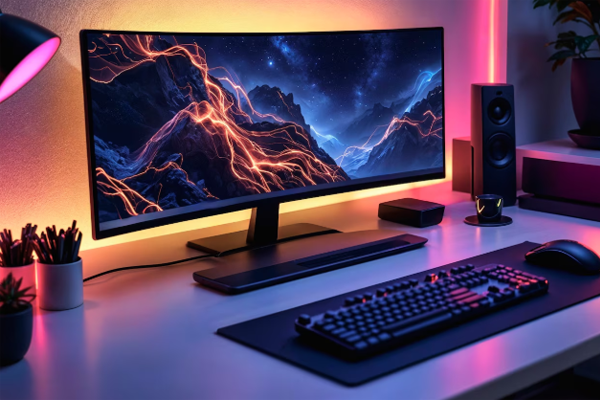
When you’re chasing the next level of immersion, frame stability can be the difference between a smooth, cinematic experience and a jittery, frustrating one. Gaming PC Upgrades that target the core causes of frame drops—thermal throttling, inconsistent GPU performance, and driver inefficiencies—can dramatically improve your gameplay. In this guide, we’ll walk through the most effective hardware and software tweaks that keep your frames steady, so you can focus on the action rather than the lag.
Gaming PC Upgrades: Optimize Your Cooling System
One of the most common culprits behind frame instability is thermal throttling. When your GPU or CPU reaches its temperature limits, it automatically reduces clock speeds to stay within safe operating ranges, which can cause sudden frame drops. Upgrading your cooling solution is often the first step toward a more consistent frame rate.
- High‑Performance Air Coolers – Brands like Noctua and be quiet! offer fans with low noise and high static pressure, ideal for tight case environments.
- All‑In‑One (AIO) Liquid Coolers – A 240‑mm or 280‑mm AIO can keep your CPU temperatures 10–15 °C lower than stock coolers, especially under sustained load.
- Custom Water Loops – For enthusiasts, a custom loop can provide the lowest temperatures and the quietest operation, though it requires more maintenance.
- Case Fans and Airflow Management – Adding intake fans and ensuring proper exhaust paths reduces overall case temperature, benefiting both GPU and CPU.
By keeping temperatures stable, you prevent the GPU from throttling during intense scenes, which translates to smoother gameplay. For more on how temperature affects performance, see the Wikipedia article on Thermal Throttling.
Gaming PC Upgrades: Upgrade to a Modern GPU with Adaptive Sync
Even the best cooling can’t fix a GPU that’s inherently limited by its architecture. Replacing an older card with a newer model that supports adaptive sync technologies—such as NVIDIA’s G-Sync or AMD’s FreeSync—can eliminate screen tearing and reduce stutter caused by frame pacing mismatches.
When selecting a new GPU, consider the following:
- VRAM Capacity – 8 GB is the baseline for 1080p, while 10–12 GB is recommended for 1440p or higher.
- Clock Speeds – Higher base and boost clocks mean more consistent performance across games.
- Memory Bandwidth – Faster GDDR6 or GDDR6X memory reduces bottlenecks during texture‑heavy scenes.
- Ray‑Tracing Support – If you plan to use ray tracing, choose a card with dedicated RT cores.
For a deeper dive into how adaptive sync works, check out the Wikipedia page on Adaptive Sync. Additionally, NVIDIA’s G-Sync page explains the benefits of proprietary hardware for frame stability.
Gaming PC Upgrades: Overclocking with Precision and Safety
Once you’ve ensured your system stays cool, the next step is to squeeze extra performance out of your components. Overclocking can increase frame rates, but it must be done carefully to avoid instability.
Here’s a step‑by‑step approach:
- Benchmark Baseline – Use tools like 3DMark or Unigine Heaven to record your current performance.
- Incremental Clock Increases – Raise the GPU or CPU clock by 25 MHz increments, testing for stability after each step.
- Voltage Management – Keep voltage increases minimal; excessive voltage can cause overheating.
- Stress Testing – Run 10‑minute stress tests with Prime95 or FurMark to confirm stability.
- Monitor Temperatures – Ensure temperatures stay below 80 °C for GPUs and 85 °C for CPUs during overclocked runs.
For detailed overclocking guides, the TechSpot overclocking guide is a reliable resource. Remember, the goal is a stable, higher clock speed that keeps frames consistent, not just a higher peak number.
Gaming PC Upgrades: Software Tweaks for Frame Rate Consistency
Hardware upgrades are only part of the equation. Optimizing your software stack can further reduce stutter and improve frame stability.
- Update Drivers Regularly – GPU drivers are frequently updated to fix performance regressions and improve game compatibility.
- Enable V-Sync or G-Sync in Game Settings – While V-Sync can introduce input lag, it eliminates tearing. G-Sync or FreeSync offers a middle ground with minimal lag.
- Adjust Power Settings – Set your Windows power plan to “High Performance” to prevent the CPU from throttling during gaming.
- Disable Background processes – Use Task Manager to close non‑essential applications that consume CPU or disk I/O.
- Use Game Mode and Graphics Settings Optimizer – Windows 10/11 Game Mode prioritizes resources for the active game.
For a comprehensive list of driver updates, visit the NVIDIA Driver Download page or the AMD Support page. These sites provide the latest patches that often address frame stability issues.
Gaming PC Upgrades: Upgrade Your Storage for Faster Load Times
While storage upgrades don’t directly affect frame rates, they reduce stutter caused by data loading during gameplay. Switching from a mechanical HDD to an NVMe SSD can cut load times from minutes to seconds, ensuring that the GPU isn’t idling while waiting for assets.
Key considerations when choosing an NVMe SSD:
- Sequential Read/Write Speeds – Look for 3500 MB/s read and 3000 MB/s write speeds.
- TBW (Total Bytes Written) – Higher TBW indicates better endurance.
- Warranty – A 5‑year warranty is a good indicator of reliability.
- Form Factor – M.2 2280 is the most common and fits most motherboards.
Popular models include the Samsung 980 Pro and the Western Digital Black SN850. For a deeper technical comparison, the TechRadar SSD review offers side‑by‑side performance data.
Gaming PC Upgrades: Final Thoughts and Call to Action
By addressing cooling, GPU selection, overclocking, software optimization, and storage, you create a holistic upgrade path that tackles every root cause of frame instability. Each component works in concert to keep your frames steady, reduce stutter, and deliver a smoother, more responsive gaming experience.
Ready to transform your rig? Start with the upgrade that offers the biggest impact for your budget—whether that’s a new GPU, a better cooler, or a fresh NVMe SSD. Remember, consistency is key: a stable frame rate is far more enjoyable than a high but erratic one.
Take the next step: evaluate your current setup, choose the upgrade that aligns with your goals, and experience the difference in every frame. Your next gaming session deserves the stability it craves.
Frequently Asked Questions
Q1. What causes frame drops in gaming PCs?
Frame drops often stem from thermal throttling, where the GPU or CPU reduces clock speeds to stay within safe temperatures. Inconsistent GPU performance can also lead to stutter, especially if the card struggles with high-resolution textures or ray‑tracing workloads. Driver inefficiencies or outdated firmware may introduce bottlenecks, causing sudden drops. Finally, background processes and power‑saving settings can throttle performance during intense gaming sessions.
Q2. How does upgrading cooling improve frame stability?
Improved cooling keeps GPU and CPU temperatures lower, preventing the hardware from throttling under load. High‑performance air coolers or AIO liquid coolers maintain steady temperatures, while custom loops offer the lowest heat for enthusiasts. Better airflow also reduces overall case temperature, benefiting both the GPU and CPU. Consistent temperatures translate to smoother frame rates and fewer sudden drops.
Q3. Should I overclock my GPU for better stability?
Overclocking can boost performance, but it must be done carefully to avoid instability. Incremental clock increases, voltage management, and thorough stress testing are essential steps. Monitoring temperatures ensures you stay below safe thresholds (80 °C for GPUs, 85 °C for CPUs). If you’re new to overclocking, start with small increments and use reliable tools like 3DMark or Unigine Heaven for benchmarks.
Q4. What software tweaks help maintain steady frame rates?
Regularly updating GPU drivers fixes performance regressions and improves game compatibility. Enabling V‑Sync or adaptive sync (G‑Sync/FreeSync) eliminates tearing while keeping input lag minimal. Setting Windows to “High Performance” prevents CPU throttling, and disabling background processes frees up resources. Windows Game Mode prioritizes the active game, further smoothing gameplay.
Q5. Does storage upgrade affect frame stability?
While storage upgrades don’t directly influence frame rates, they reduce stutter caused by data loading during gameplay. Switching from an HDD to an NVMe SSD cuts load times from minutes to seconds, keeping the GPU from idling while waiting for assets. Faster read/write speeds also help with texture streaming, which can indirectly improve perceived stability.

