
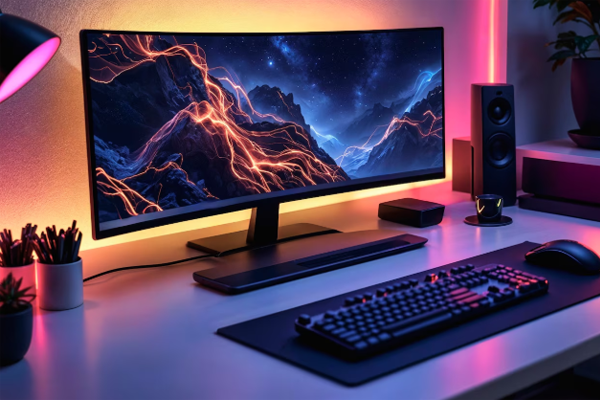
Building a gaming PC within a fixed budget demands careful planning, strategic component choices, and a focus on performance‑to‑price ratios. Whether you’re a casual gamer, a competitive e‑sports enthusiast, or a content creator, the core goal remains the same: get the best possible gaming experience without overspending. By treating the build as a well‑budgeted project, you can avoid common pitfalls that lead to wasteful spending and end with a machine that feels like a high‑end system.
Define Your Budget and Goals
Before you even touch a single part, sit down with a pen and a spreadsheet. Write down every dollar you’re willing to spend and then map each dollar to a specific component category: CPU, GPU, memory, storage, motherboard, PSU, case, and peripherals. A strict budget forces clarity; you can’t overspend on a GPU while ignoring a vital cooler, for instance. The most common mistake is to split the budget evenly between components; instead, allocate a higher percentage to the CPU and GPU, which drive the majority of gaming performance.
Consider the games you play. If you own titles that favor multi‑core processors like Microsoft Flight Simulator or Microsoft Flight Simulator 2023, a mid‑tier CPU with excellent core counts will deliver significant gains. If your focus lies on competitive shooters such as Counter‑Strike: Global Offensive, a slightly higher clock speed can give you the edge. Clarify these needs early to avoid over‑engineering components you won’t fully utilize.
An effective method is the “rule of thumb” allocation: 30 % for GPU, 30 % for CPU, 20 % for memory/storage, 10 % for motherboard and PSU, and 10 % for case and peripherals. Adjust slightly based on personal priorities or market shifts, but keep the core ratios in mind to stay within budget.
Choosing the Right CPU for Value
Once your budget is sketched, decide between Intel and AMD—a choice that can shape the rest of the build. AMD’s Ryzen line, especially the Ryzen 5 5600X and Ryzen 7 5800X, has become legendary for excellent 3 DMark scores relative to price. Intel’s 12th‑generation 12‑core i5‑12600K also offers killer performance, but its premium typically nudges prices higher.
When weighing CPUs, consider the CPU’s cache hierarchy and IPC improvements, as these directly influence gaming frame rates. Use reputable benchmarks such as the one on UserBenchmark or Guru3D’s reviews to compare real‑world scores in titles you plan to play.
Don’t overlook older, well‑priced chips if they still deliver under the required threshold. For example, the Ryzen 5 3600 can still reach 60+ FPS in many AAA titles at 1080p with moderate settings, and it often sells for one-third the price of newer CPUs. This underutilized “cheaper, still great” tactic saves thousands of dollars, allowing you to splurge in other areas.
GPU Selection: Balancing Power and Price
The GPU is normally the largest single expense. In today’s market, the NVIDIA GeForce RTX 3060 offers 12 GB of GDDR6 memory, DLSS support, and a strong price point, making it a popular 1080p/1440p play‑station. AMD’s Radeon RX 6600 XT is a comparable alternative, especially if you’re happy with its performance in raster‑based games and don’t need ray‑tracing.
When comparing GPUs, start with the manufacturer’s MSRP, but then look at real‑world selling prices on platforms like Newegg and Amazon. For instance, a used RTX 3060 can cost roughly 20-30 % less than a new card, freeing up budget for cooling or storage upgrades.
Always verify that your chosen CPU won’t bottleneck the GPU. Pairing a very high‑end GPU with a low‑tier CPU can actually lower FPS in many situations. Use tools like TechSpot’s bottleneck calculator to confirm that your CPU is adequate. In most budget builds, the mid‑tier Ryzen 5 or Intel i5 will sit nicely next to a 3060 or 6600 XT.
Memory, Storage, and Motherboard: The Core Trio
After securing chip and graphics, focus on the backbone of the system. A minimum of 16 GB DDR4 memory is recommended for modern titles, and 2666–3200 MHz modules provide a good balance between cost and performance. If your budget allows, go for 32 GB to future‑proof the machine and enable background tasks like streaming or virtual reality overlays.
Solid‑state drives (SSDs) should not be underestimated. An NVMe drive with 1 TB of capacity, such as the Western Digital Blue SN550 or Samsung 970 EVO Plus, offers fast load times and a smooth experience. Add an additional 2 TB SATA SSD if you plan on storing large libraries of games or multimedia files.
When selecting a motherboard, verify socket compatibility with your chosen CPU (AM4 for AMD or LGA1200 for Intel). Choose a board with the right number of PCIe lanes, integrated Wi‑Fi optional, and enough expansion slots for future upgrades. The B550 chipset, for instance, offers PCIe 4.0 support for newer GPUs while remaining budget‑friendly.
Power Supply, Cooling, and Case: Finishing Touches
A 650‑watt, 80+ Gold PSU should satisfy the power demands of a Ryzen 5 paired with an RTX 3060 for most use cases. Avoid “budget” 80+ Bronze units that may deliver inconsistent output; a marginally higher cost for quality will pay off in reliability. Look for modular or semi‑modular designs, which ease cable management and improve airflow.
Cooling is critical to maintain performance over long sessions. A stock cooler often lags at high loads, especially in overheat‑prone cases. An aftermarket air cooler, such as the Cooler Master Hyper 212, offers excellent thermals for a small price. If you budget allows a compact AIO liquid cooler, consider a 120‑mm or 240‑mm unit.
The case should provide enough clearance for your GPU, the cooling solution, and additional radiators or fans. A mid‑tower with at least two 120‑mm fans and RGB lighting optional will keep temperatures low and aesthetics fresh. Verify cable lengths for the chosen PSU and GPU to avoid cramped spaces.
Building Tips and Common Pitfalls
Take advantage of community resources such as Reddit’s r/buildapc or PCPartPicker to verify component compatibility and price history. PCPartPicker automatically checks for part conflicts and warns of potential bottlenecks. Following its “Build” guide ensures a smooth assembly process.
Use antistatic wrist straps and keep yourself on a grounded surface while installing sensitive components. A tiny spark can ruin an entire build. Handle the CPU by the edges, never touching the pins or pads. For the GPU, insert the card at a 90‑degree angle first, then gently level it to seat it fully into the PCIe slot.
Do not skip the BIOS update. A fresh BIOS from the motherboard vendor can unlock compatibility with newer processors or improve power delivery. Keep your drivers up to date, too—install the latest NVIDIA or AMD driver to benefit from performance patches and new game optimizations.
Final Thoughts and Call to Action
Building a gaming PC within a fixed budget is more than a cost‑saving exercise; it’s an exercise in strategic decision‑making and research. By aligning your budget with clear performance goals, choosing the most cost‑effective CPU and GPU pair, and investing wisely in the core trio of memory, storage, and motherboard, you’ll end up with a robust machine that can handle today’s titles and tomorrow’s updates.
Ready to start your build? Gather the components, double‑check each part’s compatibility, and don’t forget to enjoy the process. For step‑by‑step video instructions, visit this comprehensive guide that walks you through installation and troubleshooting. Your new gaming rig is just a few clicks away—dive in and experience the thrill of a home‑built powerhouse.

