
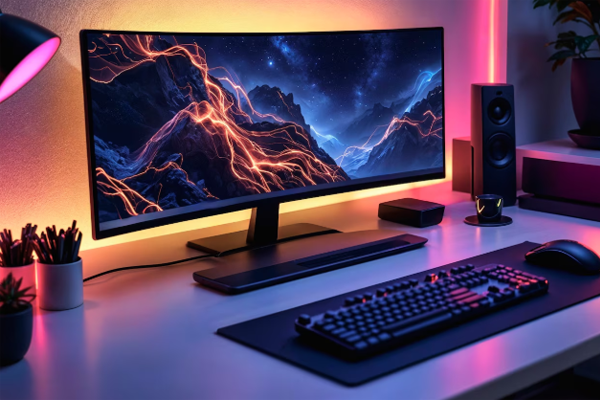
Custom Gaming PC RGB lighting has surged beyond a simple aesthetic choice; it’s now a core element of the building experience, blending performance, airflow, and personal expression. Whether you’re a seasoned builder or a newcomer, understanding how to deploy RGB without compromising system stability is essential. This guide walks you through the fundamentals—from choosing compatible components to programming dynamic lighting effects—while keeping you grounded in proven best practices.
Choosing the Right RGB Components
Performance always tops the priority list, but the right RGB gear can elevate your rig’s look and thermal efficiency. Start by selecting a motherboard that supports RGB header standards such as ARGB or on‑board RGB. Many flagship boards from LED technology provide integrated drivers that eliminate the need for separate RGB hub cards, reducing laptop bulk and power draw.
For fans and lighting strips, look to reputable manufacturers like Corsair, NZXT, and ASUS, as they ensure compatibility and firmware updates. Pay attention to “fan speed modulation” ratings and RPM curves; RGB and cooling are intertwined—fans need enough breathing room regardless of light settings.
When you buy RGB-compatible gear, verify that the device conforms to the same voltage and pinout as your motherboard or RGB controller. This reduces the risk of reverse polarity damage and keeps the system more reliable during overclocking or demanding tasks.
Installing RGB: Setup, Cabling, and Power Management
Effective lighting starts with clean cabling. Route power cables neatly, leaving airflow pathways unimpeded. Use cable sleeves to keep the build tidy and to protect wires from sudden movements that might disturb RGB insertion points.
- Mount the motherboard—before connecting any RGB headers, attach the CPU cooler, ensuring there are no obstructions around the AIO or air cooler’s RGB fan.
- Connect ARGB headers—plug ARGB leads to the aspect of the RGB‑controlled fan drivers; this enables 12‑V 3‑pin header control.
- Attach RGB header fans—for 5‑V 4‑connector headers, connect fans after placing heatspreader to keep LEDs aligned.
- Use RGB hub if required—if you have more arms than header ports, a hub consolidates signals, but always route hub cables through ventilation holes.
- Secure drivers and reference graphics cards—position your GPU with an eye on feature strip placement; many GPUs have built‑in RGB headers that can sync with motherboard lighting.
Proper grounding is critical; a common mistake is bypassing the system power supply’s 8‑pin EPS connector, which can lead to voltage drops that affect lighting performance.
Power Supply Considerations for RGB
Because RGB devices draw additional power, choose a power supply with a sufficient wattage margin. The recommended 80+ Gold certification ensures stable output, crucial for high‑intensity RGB setups that can spike under load.
To manage dynamic power, lean on smart power switches that shut off unused RGB at home standby, saving energy and reducing heat during long gaming sessions.
Synchronizing Lighting with Software Ecosystems
The heart of a true RGB experience lies in software that can handle multiple device ecosystems. Popular platforms include:
- Corsair iCUE – manages lighting across Corsair peripherals and BIOS.
- NZXT CAM – provides settings for fans, strips, and case components.
- ASUS Aura Sync – integrates GPU, motherboard, and fan lighting into one sync operator.
- MSI Mystic Light – X‑press controls across MSI accessories.
Start by installing each driver, then check the NVIDIA overclocking guide to keep GPU voltage, frequency, and fan curves stable. Most branding ecosystems allow you to link CPU fan speed to RGB brightness, ensuring the lighting reacts to CPU temperature automatically.
Custom Profiles: Colour, Mood, and Performance Layers
For a truly individualized setup, create colour schemes that reflect your gaming persona. Choose colors that stay visible under shadowy gameplay—cool, muted tones tend to be less distracting. If you like animated lighting, set your fans to pulse in tandem with the CPU clock.
Brightness controls should account for ambient lighting. For a quiet, refined system, lower RGB intensity during sleep mode to avoid screen glare and to preserve battery life for mobile panels.
Best Practices for Longevity & Heat Management
RGB lights, especially LED strips that run below the case vent, can trap heat if we’re not careful. Position strips beneath a *high‑capacity cool fan in the rear bay to maintain good thermodynamics. This approach also reduces the risk of condensation buildup over time.
Keep the RGB controller firmware updated. Firmware releases often fine‑tune color rendering and efficiency. You can validate updates via your motherboard BIOS or the application’s “check for updates” feature.
Cleaning and Maintenance Tips
Dust accumulates in all cable pathways; use compressed air to blow through your case every six months. Avoid over‑aggressive cleaning; a soft brush is safer for the delicate RGB strips.
Replace LED strips every 3–5 years if you anticipate a difference in brightness, or sooner if they show visible colour degradation. Manufacturers tend to offer seasonal guarantees on RGB components of up to 2 years.
Integrating RGB into Your Gaming Workflow
With the hardware installed and software optimized, the next step is using lights as a performance indicator. Many gamers use distinct tones for CPU temperature thresholds or GPU memory usage; set a bright red glow when temperature > 80° °C and a calm blue when under 60° °C.
For streamers, incorporate a sync overlay in your OBS setup where lighting moods change in real‑time with your gameplay, adding a layer of visual engagement for viewers.
Using RGB for Accessibility
Colour overlays can act as a discreet notification system for gamers with certain visual impairments. Short, flashing patterns can alert players to in‑game events without scrolling through your UI.
Final Thoughts: Your Personal Canvas Awaits
Custom Gaming PC RGB lighting isn’t just a trend—it’s a functional, expressive component that blends atmosphere and technical performance. By selecting compatible hardware, managing power, synchronizing software, and maintaining proper airflow, you can create a build that’s as reliable as it is radiant.
Take your next build to the next level: choose components carefully, set up precise lighting profiles, and let the LEDs breathe life into your gaming station. Whether you’re crafting a subtle ambience or an eye‑capturing spectacle, the right RGB blend will elevate every session. Ready to start customizing? Grab a fresh motherboard that supports ARGB, plug in your peripherals, and let the light show begin!

