
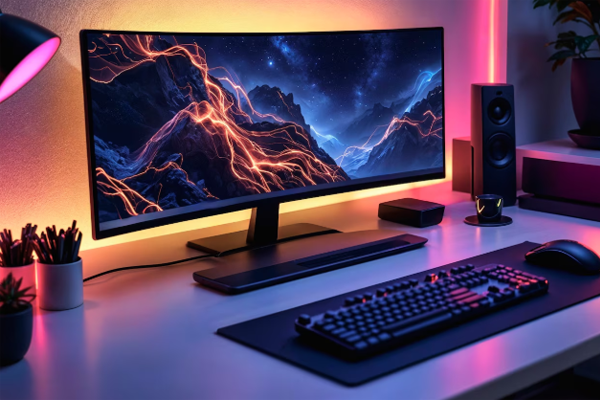
Building a high‑performance gaming PC in 2026 can feel like assembling a futuristic puzzle, but with the right guidance you can craft a machine that delivers buttery‑smooth frame rates, stunning ray‑traced visuals, and future‑proof expandability. In this step‑by‑step guide, we’ll walk through every critical decision, from selecting a gaming motherboard to fine‑tuning water‑cooling loops, so you can confidently answer the question: How to Build a Gaming PC that dominates today’s titles and tomorrow’s releases.
Choosing the Right Components
Before you unbox any hardware, outline a clear component checklist. This prevents costly mis‑matches and ensures every piece talks to the others without bottlenecks.
- CPU: Opt for the latest generation Intel Core i9‑15xxx or AMD Ryzen 9 7950X3D for top‑tier single‑thread performance.
- GPU: The RTX 4090 remains the benchmark for 4K and ray‑tracing; consider the RTX 5080 if you want even newer silicon.
- Motherboard: Choose a Z‑790 or X670E gaming motherboard with PCIe 5.0 support and robust VRM cooling.
- RAM: 32 GB of DDR5‑6000 MHz memory provides headroom for modern titles and streaming.
- Storage: Install a 2 TB NVMe SSD (PCIe 4.0 or 5.0) for lightning‑fast load times.
- Power Supply: A fully modular 1000 W 80 Plus Gold unit handles the GPU’s power spikes.
- Cooling: Combine an AIO liquid cooler for the CPU with case fans or a custom PC water cooling loop for GPU.
- Case: Pick a mid‑tower with good airflow and space for cable management.
Refer to the Gaming computer Wikipedia page for a broader overview of component compatibility.
Building the Core – Assembly Tips
With your parts laid out, follow these assembly best practices to avoid common pitfalls.
1. Prepare the Motherboard
Install the CPU and the DDR5 RAM modules before placing the board into the case. Align the CPU pins carefully; any bent pin can render the processor unusable. Apply a pea‑sized amount of thermal paste or use a pre‑applied pad on your AIO cooler.
2. Mount the Cooler
If you’re opting for a custom water‑cooling loop, secure the radiators to the case’s top and front panels, then route the tubing to the CPU and GPU blocks. For an AIO cooler, attach the bracket to the motherboard’s mounting holes and secure the radiator with screws.
3. Install the GPU
Insert the RTX 4090 (or newer) into the primary PCIe 5.0 x16 slot. Ensure the slot straps click into place and connect the required PCIe power cables from the PSU. Double‑check that the GPU’s fan blades have clearance from any nearby cables.
4. Connect Storage and Cables
Mount the NVMe SSD on the motherboard’s M.2 slot; this eliminates the need for extra SATA cables and frees up drive bays. Route the power and data cables neatly, using the case’s cable management holes and zip ties.
5. Power Up and Test
Before sealing the case, connect the PSU to the motherboard, GPU, and any drives. Perform a “paper‑clip” test to verify that the system powers on and that fans spin. If everything runs smooth, proceed to close the case.
For detailed guidance on safe CPU handling, see the MIT hardware safety resources.
Installing Software – Drivers and OS
With the hardware assembled, a clean operating system installation is crucial for peak performance.
1. OS Installation: Install the latest 64‑bit Windows 11 build, ensuring all security updates are applied.
2. Chipset Drivers: Download the newest chipset drivers from the motherboard manufacturer’s website; these optimize power delivery and PCIe lane allocation.
3. GPU Drivers: Use the GeForce Experience utility to obtain the latest RTX 4090 drivers, which include DLSS 3 and ray‑tracing optimizations.
4. Game Clients: Install Steam, Epic Games Store, or any platform you prefer, and verify that they recognize your hardware correctly.
For a comprehensive look at Windows gaming performance standards, refer to the NIST guidelines on software benchmarking.
Testing Performance – Benchmarks and Tweaks
After software setup, it’s time to benchmark and fine‑tune.
Use reputable tools like 3DMark Time Spy, Cinebench R23, and in‑game FPS counters. Record baseline scores, then adjust settings such as:
- GPU power limit (increase by 5‑10% for higher boost clocks)
- CPU voltage (ensure stability without excessive heat)
- Fan curves (balance noise versus temperature)
Document the impact of each change; this creates a repeatable tuning guide for future upgrades.
Expert analysis from Tom’s Hardware often cites the RTX 4090 paired with a 12‑core CPU as the sweet spot for 4K gaming at >120 fps.
Future‑Proofing Your Build
Even in 2026, technology evolves rapidly. Design your rig with expansion in mind.
Upgrade Paths:
- Leave an additional M.2 slot free for a future PCIe 5.0 SSD.
- Choose a PSU with extra wattage headroom for upcoming graphics cards.
- Pick a case that supports 360 mm radiators if you plan to add a second‑loop cooling system.
Keeping the BIOS updated ensures compatibility with newer CPUs and memory modules, extending the lifespan of your gaming PC.
Conclusion – Your Gaming PC Awaits
Now you have a complete roadmap for answering How to Build a Gaming PC in 2026, from component selection through performance tuning. By following these steps, you’ll enjoy immersive visuals, high frame rates, and a platform that can evolve alongside the gaming industry.
Ready to start building? Grab your parts, follow this guide, and share your build results in the comments. Your ultimate gaming experience is just a few screws away!
Frequently Asked Questions
Q1. What components are essential for a high‑end gaming PC?
A high‑end gaming PC needs a powerful CPU (e.g., Intel i9‑15xxx or AMD Ryzen 9 7950X3D), a top‑tier GPU such as the RTX 4090, a compatible Z‑790 or X670E motherboard, at least 32 GB of DDR5 RAM, a fast NVMe SSD, a 1000 W 80 Plus Gold PSU, and adequate cooling—either an AIO cooler or a custom water‑cooling loop.
Q2. How do I choose the right motherboard for my build?
Look for a motherboard that matches your CPU socket, supports PCIe 5.0, offers strong VRM cooling, and includes features you need such as Wi‑Fi 6E, multiple M.2 slots, and plenty of USB ports. Z‑790 boards pair with Intel 13th‑gen CPUs, while X670E boards are designed for AMD Ryzen 7000 series.
Q3. Is custom water‑cooling worth the extra cost?
Custom loops provide lower temperatures and quieter operation, which can boost performance on overclocked CPUs and GPUs. However, they require more planning, maintenance, and a higher upfront investment compared to an all‑in‑one (AIO) cooler.
Q4. What software should I install first after building?
Start with a fresh Windows 11 installation, then install the latest chipset drivers from your motherboard maker, followed by the newest GPU drivers via GeForce Experience. Finally, add your game launchers (Steam, Epic, etc.) and any performance monitoring tools.
Q5. How can I future‑proof my gaming PC?
Leave an extra M.2 slot free, choose a PSU with headroom (e.g., 1000 W), select a case that fits larger radiators, and keep the BIOS updated. These steps give you space to upgrade the GPU, add storage, or improve cooling without replacing the whole system.

