
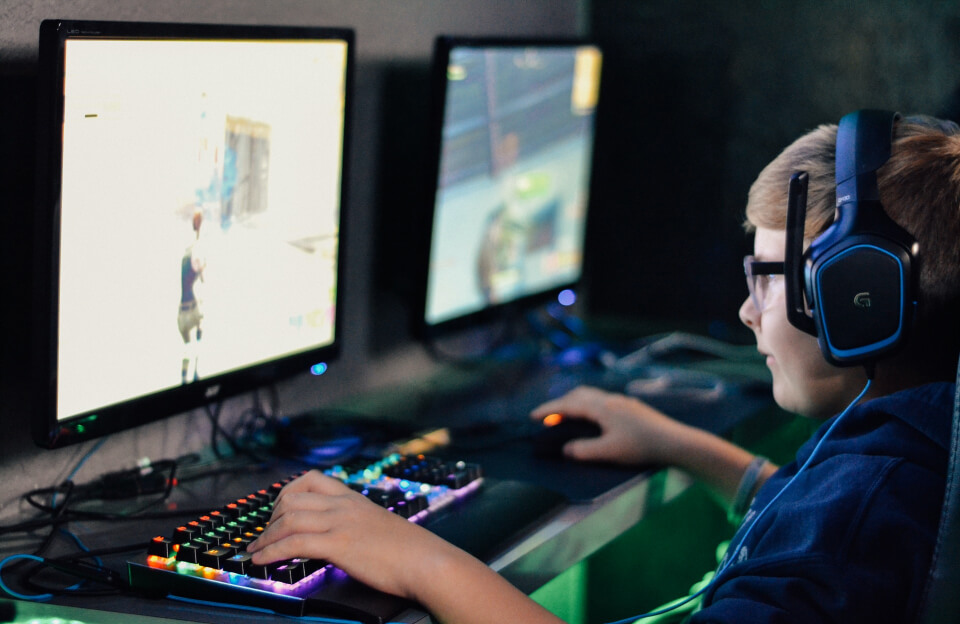
Competitive first‑person shooters demand the fastest frame rates, the lowest input lag, and the most reliable performance. If you’re looking to upgrade a gaming PC for FPS titles, you’ll need to focus on the right components, balanced power, and efficient cooling. This guide walks you through the essential upgrades, from the GPU to the power supply, ensuring you get the best bang for your buck while staying within the constraints of your current system.
Assess Your Current Build – The First Step to Upgrade Gaming PC
Before you buy new parts, inventory what you already have. Check the specifications of your CPU, GPU, RAM, storage, and power supply. Use tools like HWInfo or CPU-Z to gather accurate data. Identify bottlenecks: if your CPU is older than 2015, it may limit the performance of a modern GPU. Likewise, a 8 GB RAM stick can choke a game that requires 16 GB for smooth operation. Knowing where the limits lie helps you prioritize upgrades.
Choose the Right GPU – Core of FPS Performance
The graphics card is the heart of any competitive FPS setup. Look for GPUs that deliver high frame rates at 1080p or 1440p, depending on your monitor. Current leaders include the NVIDIA RTX 4070 Ti and AMD Radeon RX 7800 XT. Both offer excellent ray‑tracing support and DLSS/FSR upscaling, which can boost frame rates without sacrificing visual fidelity. When selecting a GPU, consider the following:
- VRAM – 8 GB is the minimum for 1440p; 12 GB or more is ideal for future‑proofing.
- Memory bandwidth – higher bandwidth translates to smoother textures and faster loading.
- Power draw – ensure your power supply can handle the GPU’s TDP plus the rest of the system.
- Form factor – check that the card fits in your case and that your case has adequate airflow.
For a deeper dive into GPU architecture, see the GPU Wikipedia page. This resource explains how modern GPUs manage parallel processing and why newer architectures outperform older ones.
Upgrade the CPU and Cooling – Keep the Core Running Smoothly
A powerful GPU can be hampered by a weak CPU, especially in CPU‑bound scenarios like complex physics or large multiplayer maps. Aim for a recent quad‑core or better processor. The Intel Core i7‑13700K or AMD Ryzen 7 7700X are excellent choices for FPS gaming, offering high clock speeds and strong single‑thread performance.
Cooling is equally critical. Stock coolers often fall short under sustained load. Consider a high‑quality air cooler like the Noctua NH‑D15 or an AIO liquid cooler such as the Corsair iCUE H100i. Proper cooling keeps temperatures below 80 °C, preventing thermal throttling and extending component lifespan.
Learn more about CPU cooling strategies on the TechRadar guide, which covers both air and liquid solutions.
Memory, Storage, and Motherboard Tweaks – Fine‑Tuning the System
RAM and storage upgrades can dramatically improve load times and in‑game stability. For competitive FPS, 16 GB of DDR4 or DDR5 at 3200 MHz or higher is recommended. Dual‑channel configurations double the memory bandwidth, which is beneficial for modern titles.
Switching from a mechanical hard drive to an NVMe SSD reduces game load times from minutes to seconds. The Samsung 980 Pro or Western Digital Black SN850 are top performers, offering read speeds up to 7 GB/s.
Motherboard compatibility matters. Ensure your new CPU and GPU are supported by the board’s chipset. If you’re moving to a newer CPU, you may need a new motherboard with a compatible socket and BIOS updates. Check the motherboard’s specifications on the manufacturer’s website before purchasing.
For a comprehensive overview of memory types and speeds, consult the RAM Wikipedia article.
Power Supply and Case Considerations – The Foundation of Stability
A reliable power supply unit (PSU) is essential for delivering consistent voltage to all components. Calculate your system’s total power draw using online calculators like the Newegg PSU calculator. Add a 20–30 % safety margin to accommodate future upgrades.
Choose a PSU with an 80 Plus Gold or Platinum rating for efficiency and lower heat output. Brands such as Seasonic, EVGA, and Corsair are known for quality and longevity.
Case airflow is another critical factor. A case with at least two intake fans and one exhaust fan ensures proper ventilation. Look for models with mesh front panels and ample cable management options to keep airflow unobstructed.
For guidelines on building a thermally efficient case, refer to the CNET PC case guide.
Conclusion – Ready to Upgrade Your Gaming PC?
Upgrading a gaming PC for competitive FPS games is a strategic process that balances performance, cost, and future readiness. By assessing your current build, selecting the right GPU, upgrading the CPU and cooling, fine‑tuning memory and storage, and ensuring a robust power supply and case, you’ll achieve higher frame rates, lower latency, and a smoother gaming experience.
Take the next step
Frequently Asked Questions
Q1. What is the most important component to upgrade for FPS performance?
The graphics card is the single most critical component for FPS gaming. A modern GPU like the RTX 4070 Ti or RX 7800 XT can deliver high frame rates at 1080p or 1440p. Even the best CPU will be limited if the GPU cannot keep up, so prioritize the GPU first. Pair it with sufficient VRAM and bandwidth to avoid bottlenecks.
Q2. How much RAM do I need for competitive FPS?
Most competitive titles recommend 16 GB of DDR4 or DDR5 memory. Dual‑channel configurations double bandwidth, which helps with large maps and physics calculations. If you plan to stream or run background applications, 32 GB can provide extra headroom. 8 GB is generally insufficient for modern games.
Q3. Should I use an SSD or HDD for game storage?
Switching to an NVMe SSD dramatically reduces load times and improves overall system responsiveness. Mechanical HDDs can still be used for bulk storage, but the initial game launch and level streaming will be noticeably slower. An SSD also helps with faster texture streaming during gameplay.
Q4. Is a higher wattage PSU always better?
A higher wattage PSU is not always necessary; it must match your system’s power draw plus a safety margin. A 650 W unit is often sufficient for a mid‑range GPU and CPU combo. Oversizing can add cost and weight, but a PSU with an 80 Plus Gold rating ensures efficiency and reliability.
Q5. How does cooling affect FPS?
Effective cooling keeps the CPU and GPU temperatures below thermal throttling thresholds. High temperatures can cause the processor to reduce clock speeds, lowering frame rates. Investing in a quality air cooler or AIO liquid cooler can maintain stable performance during long sessions.

