
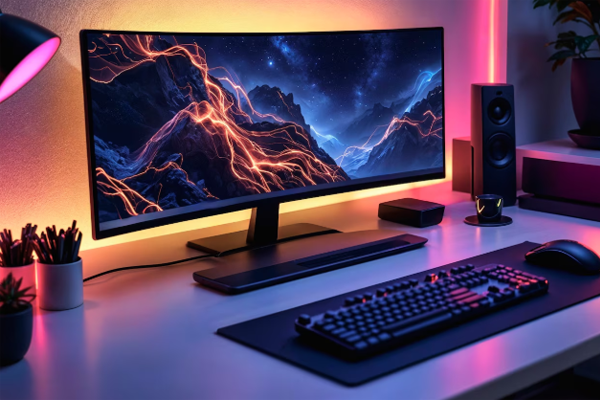
When you’re planning a new gaming rig, the first question that pops up is, “How much will this cost?” Estimating a gaming PC build cost accurately isn’t just about adding up sticker prices; it’s about understanding the value each component brings to your gaming experience. By breaking the process into clear steps, you can avoid surprises, stay within budget, and still get the performance you need.
1. Define Your Gaming Goals
Before you even look at prices, ask yourself what you want from your PC. Are you streaming 4K gameplay, competing in esports, or simply enjoying casual titles? Your goals dictate which components matter most. For example, a high‑end GPU is essential for 4K streaming, while a fast CPU and plenty of RAM are critical for competitive shooters that rely on quick frame updates.
2. Break Down Component Costs
Once you know your priorities, list the core parts: CPU, GPU, motherboard, RAM, storage, power supply, case, and cooling. Use reputable sources to find current prices and performance benchmarks. Below is a typical cost breakdown for a mid‑range build that balances performance and value.
- CPU: $200–$300 (e.g., Intel Core i5‑13600K)
- GPU: $350–$500 (e.g., NVIDIA RTX 3060 Ti)
- Motherboard: $120–$200 (e.g., MSI B660 Tomahawk)
- RAM: $80–$120 (16 GB DDR4, 3200 MHz)
- Storage: $100–$150 (1 TB NVMe SSD)
- Power Supply: $80–$120 (650 W, 80+ Gold)
- Case & Cooling: $70–$120 (mid‑tower with airflow)
- Peripherals & Software: $200–$400 (monitor, keyboard, mouse, OS)
Adding these ranges gives a ballpark of $1,200–$1,800. Adjust the numbers based on your specific component choices and local market variations.
3. Factor in Peripheral and Software Costs
Many builders overlook the cost of peripherals and software, which can add up quickly. A high‑refresh‑rate monitor, mechanical keyboard, and gaming mouse can cost $300–$500. Don’t forget the operating system—Windows 11 Home is about $140, while a free Linux distro can save you money if you’re comfortable with it. Subscription services like Xbox Game Pass or PlayStation Now also factor into your overall gaming budget.
4. Use Online Tools and Price Tracking
Leverage price‑tracking websites and build calculators to stay informed. Sites like TechSpot and CNET offer up‑to‑date price comparisons and user reviews. Many retailers provide price‑drop alerts; set them up for your chosen components to catch discounts before you commit.
5. Plan for Future Upgrades
Even if you’re satisfied with a mid‑range build today, consider how you’ll upgrade in the next 2–3 years. Choosing a motherboard with extra PCIe slots, a PSU with headroom, and a case that supports larger GPUs can extend the life of your system. This “future‑proofing” strategy may increase the initial cost slightly but saves money in the long run.
Conclusion: Build Smart, Spend Wisely
Accurately estimating gaming PC build cost is a blend of research, planning, and a clear understanding of your gaming goals. By defining priorities, breaking down component costs, accounting for peripherals, using price‑tracking tools, and planning for future upgrades, you can create a system that delivers performance without breaking the bank.
Ready to start building? Use the steps above to draft your budget, compare prices, and assemble a rig that matches your gaming ambitions. Happy building, and may your frames per second stay high!
Frequently Asked Questions
Q1. How do I determine the right budget for my gaming PC?
Start by defining your gaming goals—whether you need 4K streaming, competitive esports, or casual play. List the core components and research current prices and performance benchmarks. Add a buffer for peripherals, software, and future upgrades to avoid surprises. Adjust the numbers based on local market variations and your willingness to compromise on certain specs.
Q2. What are the most important components that affect cost?
The GPU typically has the largest impact on price, especially for high‑resolution or high‑refresh‑rate gaming. The CPU, motherboard, and RAM also drive cost, particularly if you need low latency or multi‑core performance. Storage, power supply, and case are usually mid‑range, but quality cooling can add to the budget. Peripherals and software can add a few hundred dollars.
Q3. Should I buy new or used parts to save money?
Buying used can reduce upfront costs, but it carries risks such as limited warranty and potential wear. For high‑end GPUs and CPUs, new purchases often offer better reliability and future support. If you choose used, buy from reputable sellers, verify return policies, and test components before committing. Consider the total cost of ownership, including potential repairs.
Q4. How can I track price drops for components?
Use price‑tracking tools like CamelCamelCamel, Honey, or the built‑in alerts on major retailers. Build calculators on sites like TechSpot and CNET provide real‑time price comparisons. Set up email alerts for specific SKUs and monitor forums for flash sales. Timing your purchase around major shopping events can also yield significant savings.
Q5. What future‑proofing steps can I take without overspending?
Choose a motherboard with extra PCIe slots and a PSU with headroom for future upgrades. Opt for a case that supports larger GPUs and additional cooling. Select a CPU and GPU that exceed your current needs but still fit within your budget. Plan for incremental upgrades—like adding more RAM or a faster SSD—rather than a full rebuild.

